Help Centre › Getting started › Sign in for the first time and change your password
Sign in for the first time and change your password
Owners and teachers sign in with their email address and a temporary password. Owners get theirs from us; teachers get theirs from the owner.
For owners and teachers1 min readUpdated 17 Nov 2026
Sign in
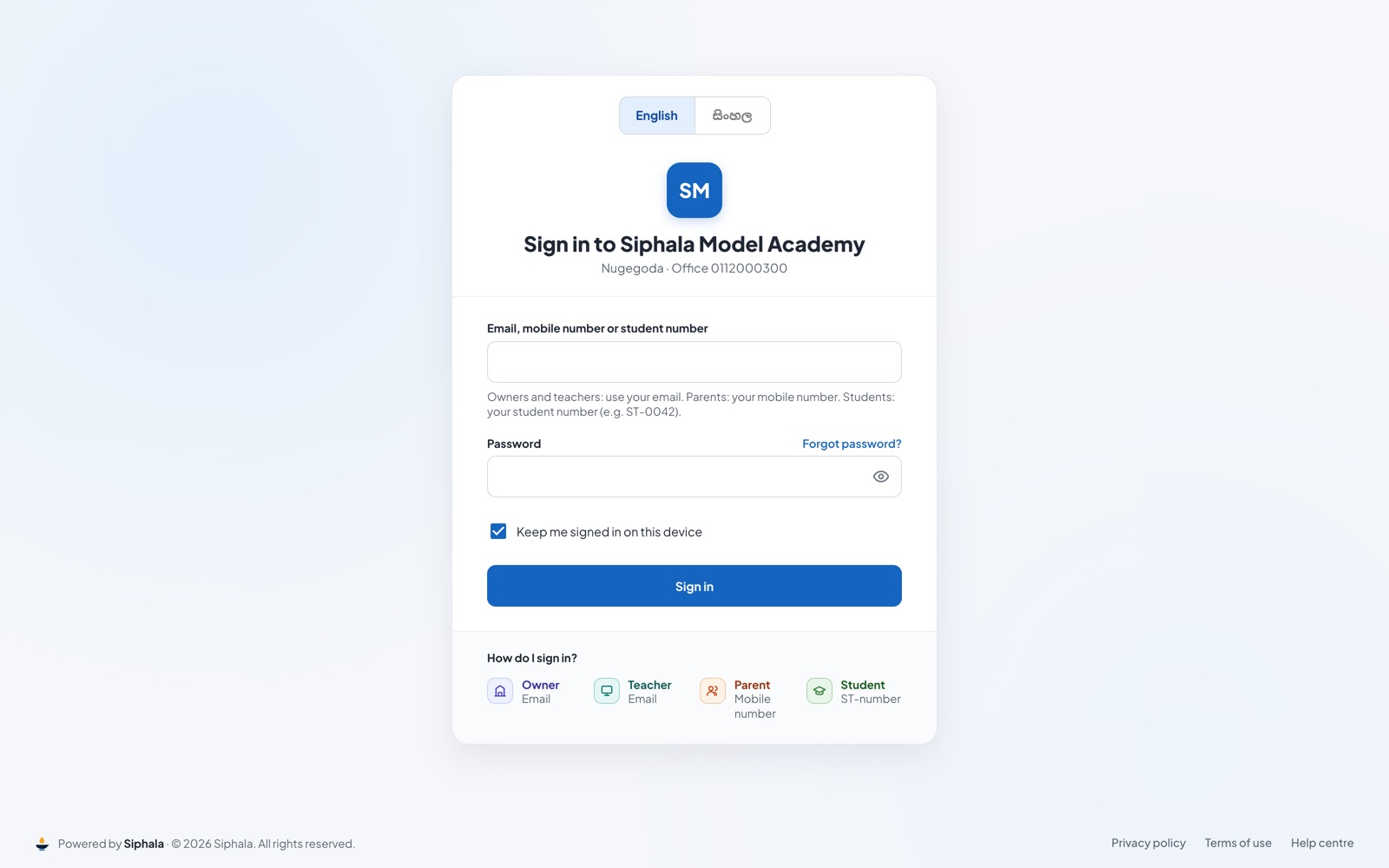
- Open your institute's sign-in page, for example app.siphala.com/your-institute. Bookmark it.
- In Email, mobile number or student number, type your email address.
- Type your password.
- Leave Keep me signed in on this device ticked on your own phone or computer. Untick it on a shared computer.
- Tap Sign in.
Choose your own password
The first time you sign in, Siphala shows Set your own password.
- Type the temporary password again.
- Type a new password of at least 8 characters, and repeat it. Siphala refuses passwords that have appeared in known data leaks, so pick something only you would use.
- Tap Save and continue.
Change your password later
- Open your account menu: your name at the bottom of the side menu on a computer, or the round letter at the top right on a phone.
- Choose Change password.
- Type your Current password, then the New password twice.
- Tap Save.
If it doesn't work
- "Those details don't match. Check and try again." Check the email for typing mistakes, and that Caps Lock is off.
- Forgot your password? Tap Forgot password? on the sign-in page. Reset your password
- Wrong institute? Each institute has its own address. Ask the owner for the right link.
Was this helpful?