Help Centre › Getting started › Import students from Excel and print login slips
Import students from Excel and print login slips
Add your whole student list at once. Siphala checks every row before saving anything, and you can undo an import within 24 hours.
For owners2 min readUpdated 17 Nov 2026
Before you start
Add your classes first, so Siphala can match each student to them. Set up classes
Import
- Open Students and tap Import students.
- Tap Template (Excel) (or Template (CSV)) and fill in one row per student: Student name, Grade, Parent name, Parent mobile and, if you like, Classes. Separate several classes with a semicolon, for example "Grade 10 Maths; Grade 10 Science". Use the class titles exactly as they are in Siphala.
- Save the file and tap Upload file.
- Check the rows. Each one shows OK, Warning or Error, with the reason underneath, for example "Not a valid mobile number" or "No class called …". Rows with an error are left out. Untick any row you don't want. To fix rows, correct your file and tap Choose another file.
- Tap Import N students.
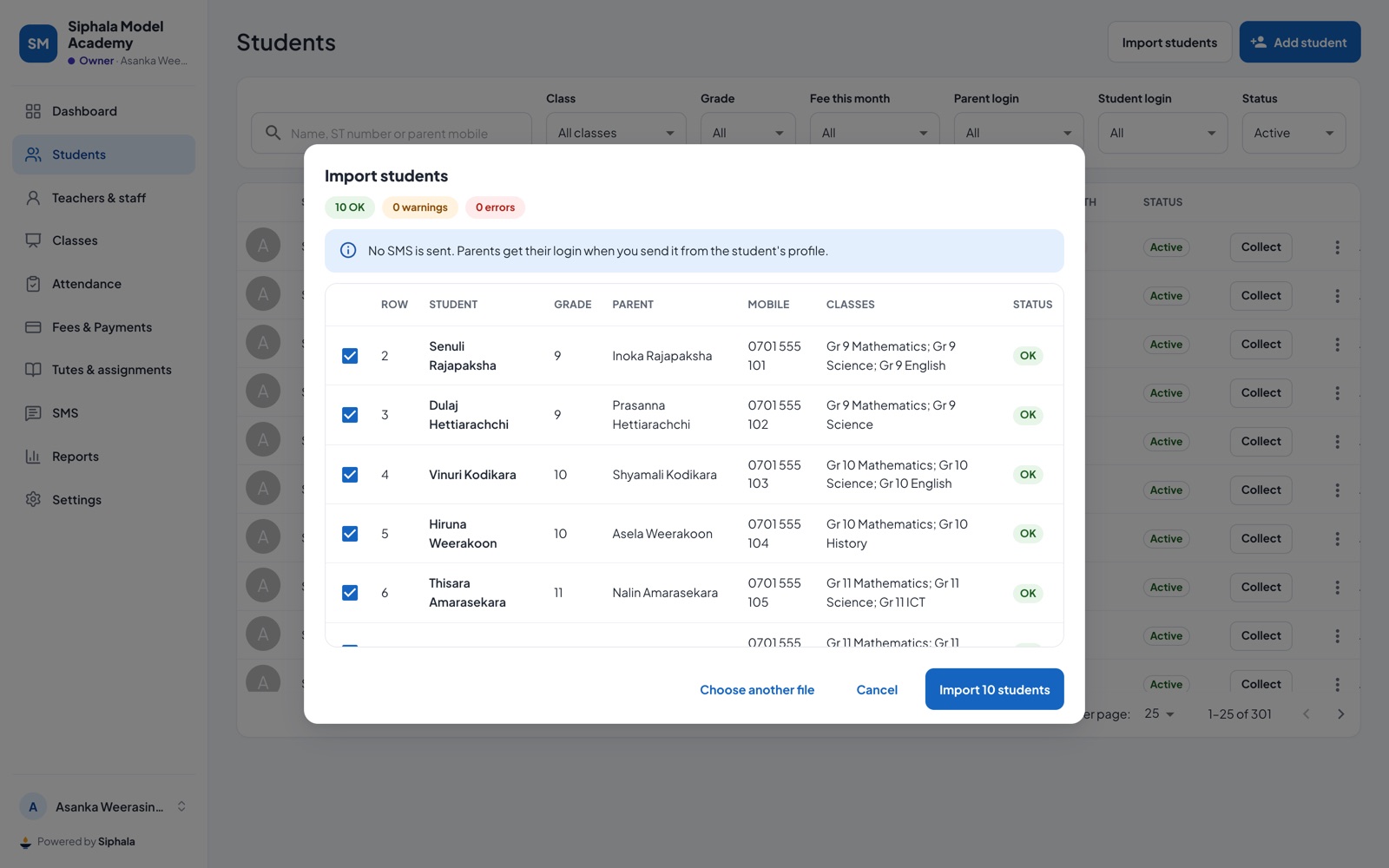
No SMS is sent during an import. Parents get their login from the printed slips below.
Print login slips
- Open Students → Import students again. Your import is listed under Recent imports.
- Tap Print login slips, then Make the slips.
- Print the PDF: 8 slips on each A4 page, each with the parent's mobile number, a temporary password and your sign-in address.
- Cut them up and hand them out.
Making slips gives a new temporary password to every parent in that import who hasn't signed in yet, so any earlier slips stop working. Parents who have already signed in keep their own password.
Undo an import
Open Students → Import students, find the import under Recent imports and tap Undo import. This works for 24 hours, and only if no payments have been recorded for those students.
Need help preparing your list? Send it to us on WhatsApp 077 493 3591, even as a photo of your register, and we'll set it up for you.
Was this helpful?