Help Centre › Running your institute › How to add a student
How to add a student
Add one student by hand in under a minute. To add many at once, use Import students from Excel.
For owners1 min readVideo · 51 secUpdated 17 Nov 2026
Watch: How to add a student · 51 seconds · captions in English
Steps
- Open Students from the menu and tap Add student.
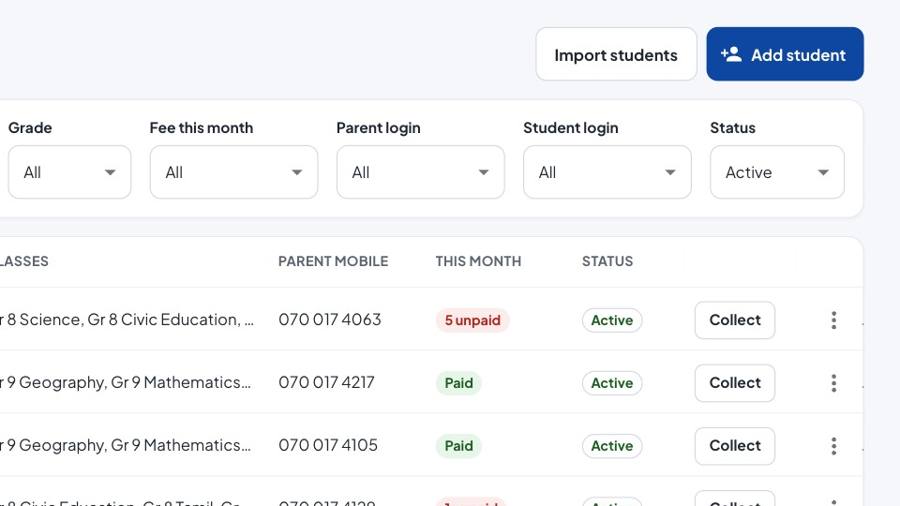
Add student is at the top right of the Students page. - Find existing: search by the parent's mobile, the student's name or an ST number. This stops duplicates, and lets a brother or sister share the same parent login. If nothing is found, tap New student.
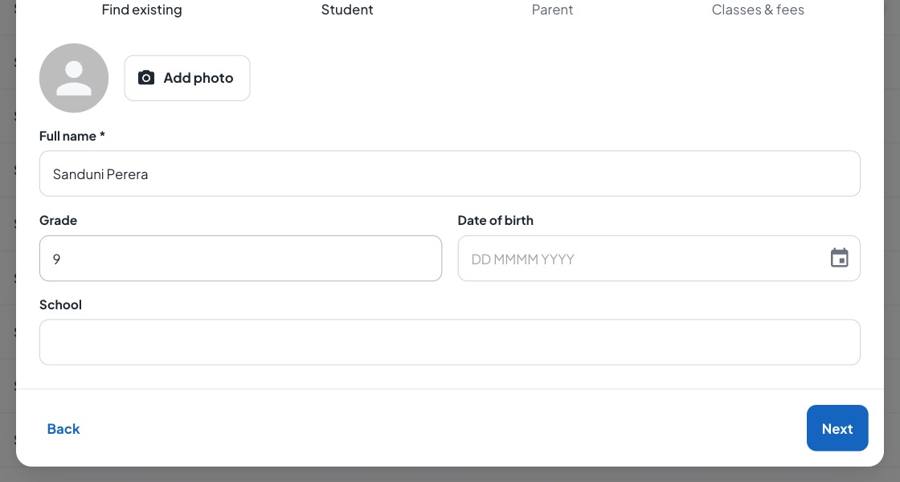
- Student: type the full name and choose the grade. A photo, date of birth and school are optional. Tap Next.
- Parent: type the parent's or guardian's name and mobile number. The mobile number becomes the parent's login. Tap Next.
- Classes & fees: tick each class the student joins, and choose its fee type: Full, Discount or Free card.
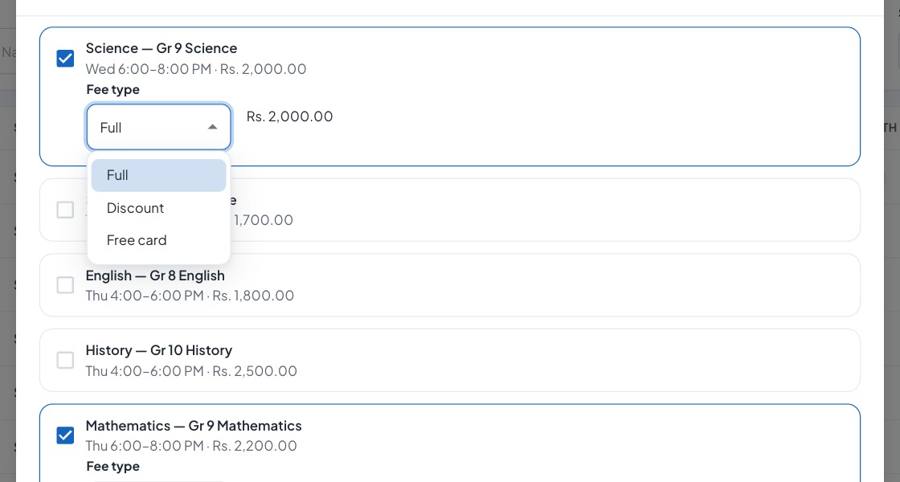
- Check the first month total and tap Save.
After saving
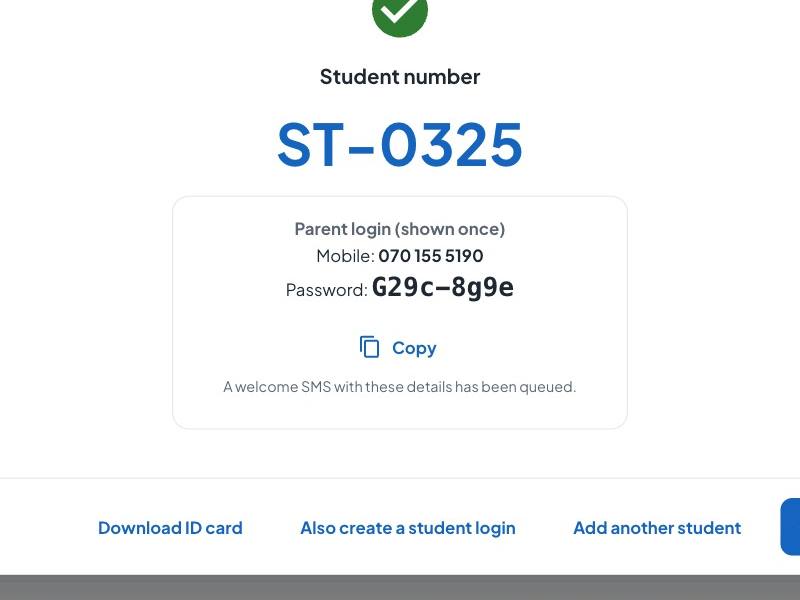
Siphala shows the new student number (for example ST-0326) and the parent's login: their mobile number and a temporary password.
The password is shown only once. Write it down, copy it, or print the ID card before you close this screen.
Good to know
- This month's fees are added straight away; later months are added on the 1st.
- Need a new password for the parent later? Open the student's profile and tap Reset parent password. Create student login gives the student their own login with their ST number.
- A student who leaves should be marked inactive (Mark inactive on their profile), not deleted, so their payment history stays.
Was this helpful?