Help Centre › For parents › Sign in as a parent
Sign in as a parent
Your login is your mobile number and the password your institute gave you, on a printed login slip or on screen when your child was added. One login shows all your children at that institute.
For parents2 min readUpdated 17 Nov 2026
Sign in
- Open your institute's address on your phone, for example app.siphala.com/your-institute. Your institute gives you this address; it's also on your login slip.
- In Email, mobile number or student number, type your mobile number, for example 077 123 4567.
- Type your password.
- Tap Sign in.
- The first time, Siphala asks you to choose your own password: type the temporary password, then your new one twice, and tap Save and continue.
In the Siphala app
The Android and iPhone apps are coming soon. When you open the app for the first time, it asks Which institute?
- Type your institute's address, for example brightpath (the part after app.siphala.com/). You can also paste the whole link.
- Tap Continue, then sign in as above.
Next time, the app opens straight at your institute.
When the app asks Turn on notifications?, tap Turn on. You'll get a free notice when your child is absent, a receipt is ready or marks are released.
What you'll see
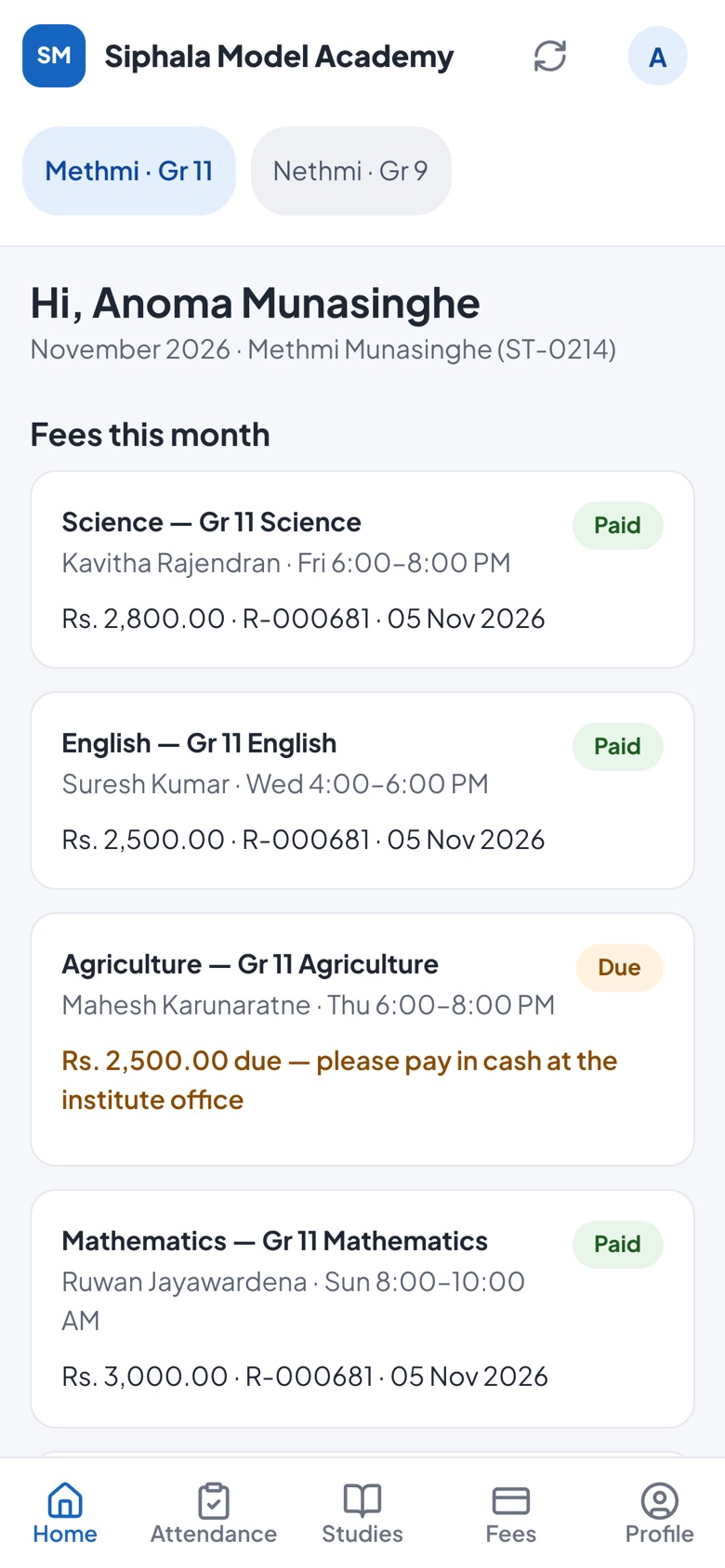
- Home: each child's classes and whether this month is paid.
- Attendance: every class day.
- Studies: tutes, assignments and marks once the teacher releases them.
- Fees: what's due, and every receipt, which you can save as a PDF.
- Profile: your children, ID cards, Change password and Sign out.
Language
If your institute offers Sinhala, tap සිංහල on the sign-in page, or later choose Language · භාෂාව in Profile.
If it doesn't work
- "Those details don't match. Check and try again." Check the mobile number and password.
- Forgot your password? Contact your institute's office. They can give you a new one in seconds.
- Children at two institutes? Each institute gives you its own login, at its own address.
Was this helpful?