Help Centre › For teachers › Mark attendance
Mark attendance
Mark a class on your phone in about a minute. Every tap saves straight away, so nothing is lost if your connection drops.
For teachers and owners2 min readUpdated 17 Nov 2026
Steps
- On your home screen, find today's class and tap Mark attendance.
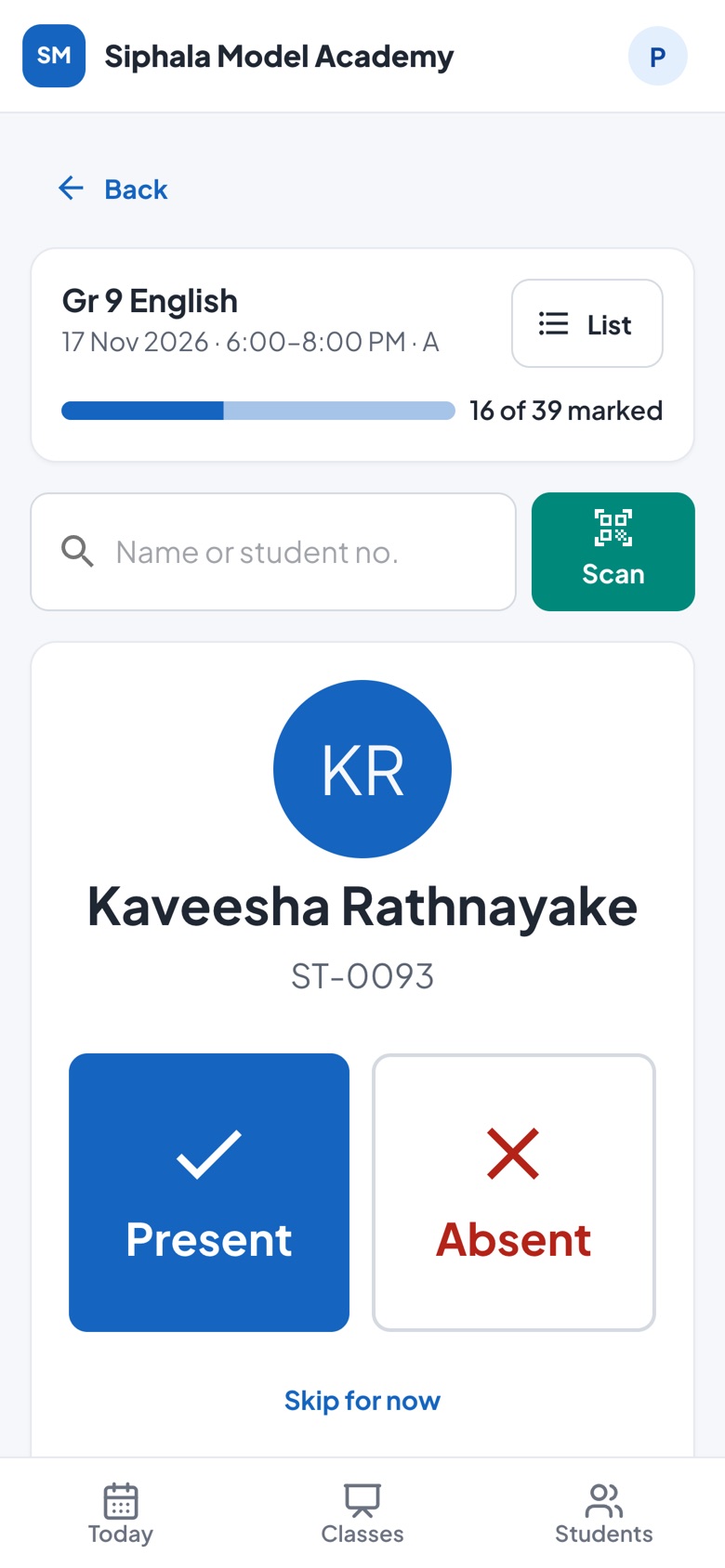
- Siphala shows one student at a time, with their photo. Tap Present or Absent.
- The next student appears. Keep going.
- When everyone is marked, you see Everyone is marked with the totals. Tap Done.
Shortcuts
- Search: type a name or student number in the box at the top to jump to that student.
- Scan reads the QR code on a student's ID card, if your institute uses ID cards.
- Skip for now moves a student to the end.
- Undo appears for a few seconds after each tap, in case you tapped the wrong one.
- List shows the whole class at once, with P and A buttons and Mark all present. One by one takes you back.
- Finish: mark N left as absent marks everyone you haven't marked yet as absent.
- Class did not happen — mark cancelled leaves the session out of attendance percentages.
What parents see
Parents see the attendance on their phone. If the owner has switched on SMS for absences, parents of absent students also get an SMS, or a notice in the app once they use it.
Made a mistake?
Open the class and date again and change the student. Teachers can change attendance for today and the few days before: the owner sets how many in Settings → Rules (Teachers can edit attendance for N days; 0 means today only, and new institutes start at 3). After that, ask the owner: owners can always change it.
A class isn't on today's list?
- Ask the owner to check its weekday and time in Classes.
- For a one-off or revision class, tap Extra session on your home screen.
Was this helpful?